
What you can build on tawks
Tawks is a community app. People gather in niches around shared interests, keep up with their own people in friend groups, talk in channels, hang out in lobbies and play games together. Most of what a user sees inside a channel is drawn from a workflow: a description of a page that a bot sends to tawks as data. Tawks renders that page on the web, on desktop and on mobile. Your bot never ships any client code.
A bot is a program you write and run yourself, in your own repository, on your own machine or server. It connects to the hosted tawks at https://tawks.app, registers the pages and handlers it provides, and reacts when people use them.
This page explains the concepts you build against. Your first bot takes you from a token to a working page.
The community model
Tawks splits what a Discord server does into two things: niches for interests, and friend groups for people. If you know Discord, the friend group is the closer match to a server.
Niches
A niche is a broad community built around an interest, such as hockey, cooking or word puzzles. Niches are meant to be big and open: one niche per topic, shared by everyone who cares about it, rather than one per circle of friends. That is where pages, puzzles, feeds and games live, and where people who don't know each other yet meet.
A niche has a name, a logo, an owner and a short slug that appears in its URLs, for example https://tawks.app/niche/<niche slug>/<channel slug>.
- Public niches are listed in Explore. Anyone with an account can join one with a single click, and guests can look around without joining.
- Private niches are not listed and can't be joined from Explore. The only way in is an invite from someone who manages the niche.
- Creating niches. People can't create niches themselves, public or private. The tawks team creates them, so that each topic has one home instead of many small copies.
The niche owner, and anyone with an admin role, manages the niche from its settings: the profile, roles, channels, invites, flairs and emojis.
Friend groups
A friend group is a small, invite-only space for people who already know each other, and it is what makes tawks feel like a Discord server for your friends. Anyone can create one, name it and add people. It has:
- A group chat, with a member list that shows who is online.
- Its own custom emojis and invite links.
- A place in your conversations, next to direct messages. A direct message is a friend group with exactly two people in it.
Friend groups don't have channels. When a group wants to play, its members open a lobby in a niche channel together, and the lobby shows them side by side as a group. Recordings of the games they play there are shared with the group.
For a bot this means your pages and games always run in niche channels, and friend groups are how people bring their friends to them. Design for strangers meeting in a public niche and for a group of friends who arrive together.
Categories and channels
A niche groups its channels into categories in the sidebar. Every channel has a type, which mostly decides its sidebar icon:
| Type | Typical use |
|---|---|
chat |
A text chat channel. Its chat is where messages are stored and where a bot can post. |
post |
Long-form pages, such as these docs. |
feed |
News feeds and lists of links. |
tiles |
Interactive pages. Most daily puzzles and game channels use this type. |
multi_media |
Audio and media channels. |
What a channel actually shows comes from the workflow attached to it. A niche admin picks that workflow in the channel's settings, and any workflow your bot has registered appears in the list. When someone opens the channel, tawks starts your workflow for that person and passes it the channel and niche it is running in, plus who is viewing.
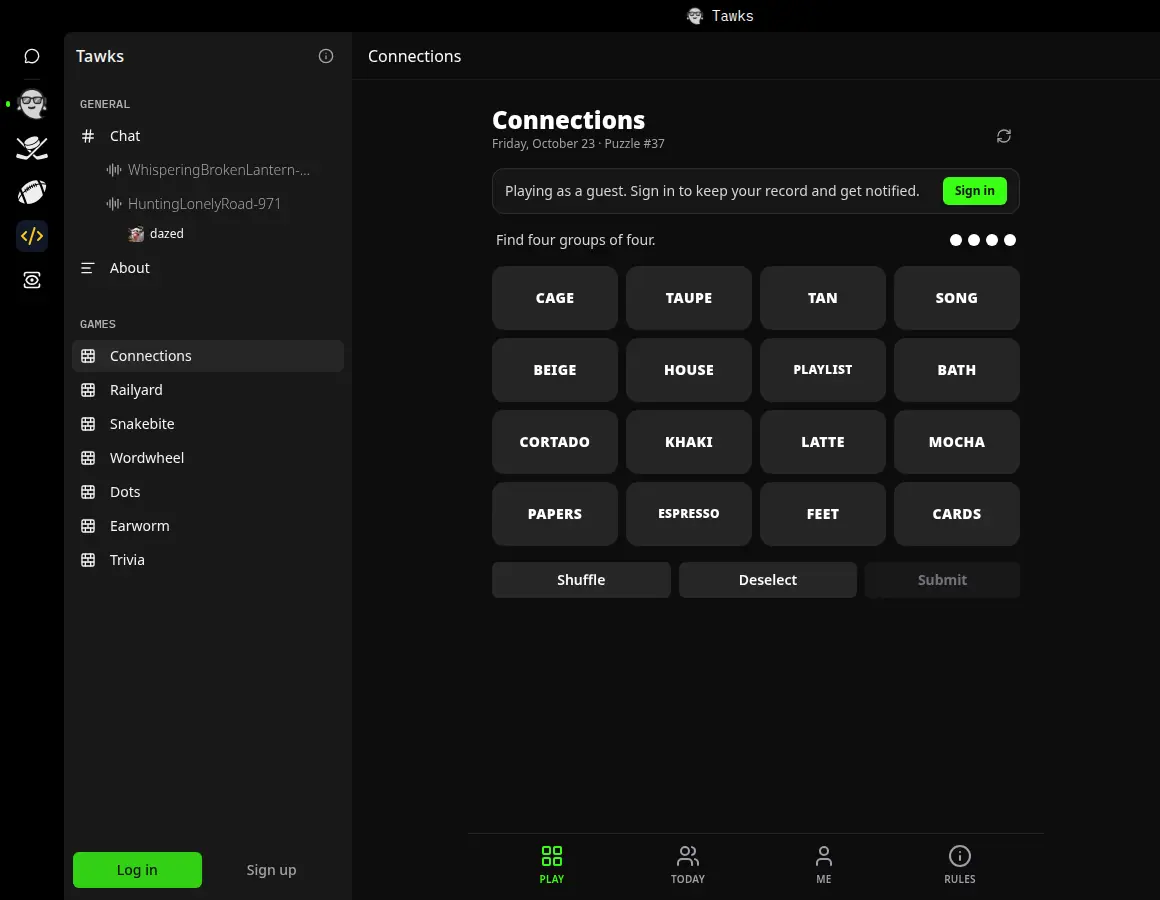
The Tawks niche, opened as a guest. The sidebar lists its channels by category, and the Connections puzzle in the middle is a page a bot describes with a workflow.
Roles and permissions
Each niche has roles, ordered by position, with an everyone role that applies to all members. Roles carry permissions, and a channel can override them per role or per member. The permissions that matter most when you set up a bot are:
| Permission | What it lets someone do |
|---|---|
| Administrator | Change any niche setting |
| Manage Channels | Edit a channel's name, workflow and lobby settings |
| Manage Roles | Edit roles and channel permission overrides |
| Manage Niche Profile | Edit the niche name, logo and default channel |
The niche owner passes every niche-level check. To attach your bot's workflow to a channel you need to own the niche or hold Manage Channels in it.
A bot account is a user like any other. When it calls the API, it gets the same answers a person with the same memberships would get. If your bot posts in a niche's chat, it needs to be a member of that niche.
Guests
Visitors who have not signed up browse tawks as anonymous guests. Guests can open channels and play, but actions that write to a niche need a signed-in account. Your workflow can tell the two apart: each instance carries an $anonymous flag next to the viewing user.
Lobbies
A lobby is a temporary room inside a channel where a group of people play or watch something together. It has an owner, its own chat and voice, and room for one running game at a time.
People can open lobbies in any channel where the "Members can create lobbies" setting is on. A lobby's game menu lists the first-party games and any game activities the niche has turned on, so the way to put your game in lobbies is to make it an activity. See Building games.
Workflows: UI as data
A workflow definition is a tree of nodes. Each node has a condition that decides when it shows, and visuals built from displays (text, images, buttons, tables, charts, timers, game boards and 3D canvases among them), inputs and actions. A definition is plain data. The Rust SDK gives you builders to put one together.
When a user opens a workflow, tawks creates an instance for them: the definition plus that user's state, called responses, and some context such as the viewing user. The app renders whatever the instance's current node describes. When the user clicks a button, the action either changes the instance directly in tawks or calls a server action: a named handler your bot registered. Your handler returns a result, for example new responses, a different node, a scheduled job, or an error message, and tawks pushes the updated page to everyone who can see it.
Because the page is data, the same workflow works in the browser, in the desktop app and on phones, and it updates live without a reload.
Workflows covers definitions, nodes, conditions and templates in depth, and Display reference lists every display type.
Bot accounts
A bot is a user account marked as a bot, with a user id, a display name and an avatar. It signs in with a bot token instead of a password or passkey.
The bot's user id matters in one place you will see often. When your bot registers a workflow named hello, tawks stores it as:
wf-hello-<your bot's user id>
That full id is what appears in the channel settings list and what a channel stores. Server actions get the same treatment: hello.wave becomes sa-hello.wave-<your bot's user id>.
What you can build
- Channel pages. A workflow attached to a channel becomes that channel's page: standings, a schedule, a dashboard, a form. Pages can update live while people have them open.
- Daily puzzles. A page that shows the same puzzle to everyone each day, keeps each player's progress in their own instance, and offers a share card when they finish. Several of the puzzles in the Tawks niche are built this way.
- Chat commands and replies. Your bot receives chat messages over the events connection and can reply with the same API calls people use. A bot that answers
!pingwithpongis a few lines; see Writing a bot. - Notifications. A bot can send push and in-app notifications on behalf of a channel. Users opt in per kind from the channel's bell menu, so they only get what they asked for.
- Lobby games. A workflow that runs inside a lobby for a group of players, from turn-based card games to real-time 3D tables. See Building games. A game that needs its own screen, such as a canvas or 3D game, can ship it as a web app: see Game activities.
How a bot talks to tawks
Your bot holds two connections to tawks.
| Connection | Address | Used for |
|---|---|---|
| HTTPS API | https://rspc.tawks.app/rspc |
Every call your bot makes: registering workflows and server actions, answering server action requests, sending chat messages, reading users and channels |
| Events WebSocket | wss://events.tawks.app/ |
Everything tawks pushes to your bot: server action requests, chat messages, workflow updates |
Each API procedure is a POST to https://rspc.tawks.app/rspc/<procedure name> with a JSON body. Every request carries the header Authorization: Bot <your token>. The word Bot matters: tawks only treats the header as a bot token when it starts with Bot.
The events WebSocket takes a short-lived access token instead of your bot token. Your bot gets one by calling the auth_access_token procedure and passes it as ?token=<access token> on the WebSocket URL.
A button click that reaches your bot goes like this:
- A user clicks a button whose action targets one of your server actions.
- Tawks sends your bot a
workflow_request_server_actionmessage over the WebSocket, with a request token, the action id, and the user's instance and context. - Your handler runs and your bot posts its result to the
workflow_respond_server_actionprocedure with that request token. - Tawks applies the result and pushes the new state of the page to everyone viewing it.
Server action registrations are leases that your bot renews while it runs. If your bot goes offline, pages that need it show "This workflow is unavailable right now because no connected bot can handle it." until it comes back.
The Rust SDK, the tawks-bot crate, handles all of this for you: the auth header, the access token, the WebSocket, heartbeats, lease renewal and re-registration. Writing a bot walks through it.
Developer preview
The bot platform is open to outside developers as a preview. A few things are still handled by hand:
- Bot accounts. Making bots is by invitation: a niche's admins grant the Create Bots permission, and you make the bot and its tokens under Settings, then Bots. Each person owns one bot unless the tawks team raises the limit. Ask in
dev-chatif you need access. - SDKs. The Rust SDK (
tawks-bot), the JavaScript SDK (@tawks/bot), the game framework and the TypeScript packages are open source in the tawks-dev repository, with examples and a local stand-in for tawks. They are not on crates.io or npm yet, so depend on them by git. - Test niches and channels. Only the tawks team creates niches, and that includes private ones. Ask in
dev-chatfor a private niche to test in; once you own it you can add channels, attach your workflows and invite testers from its settings. - Lobby picker. The in-lobby game menu lists first-party games and the game activities a niche has turned on. A game built from workflow displays starts from a channel page instead.
- Tawks score. Awarding tawks score is limited to first-party games for now.
- First-party games. Three lobby games that ship with tawks are open source in the tawks-dev repository under
games/: Cards, Midnight and Tracklines. They run on the same game framework as your bots, so you can read real games end to end.